Sharing your plan with a link
Expanding
Benjamin | TrackDrawer.com · published 24 November 2026
A share link lets someone look at your plan without changing anything. Handy for a question on a forum or for showing a plan to your club.
Open your plan and click Print at the top right. Scroll to "Share" in the panel. Save a new plan first with Save.
Tick Share link on (read only) (1). The field below shows the link right away, and Copy puts it on your clipboard (3).
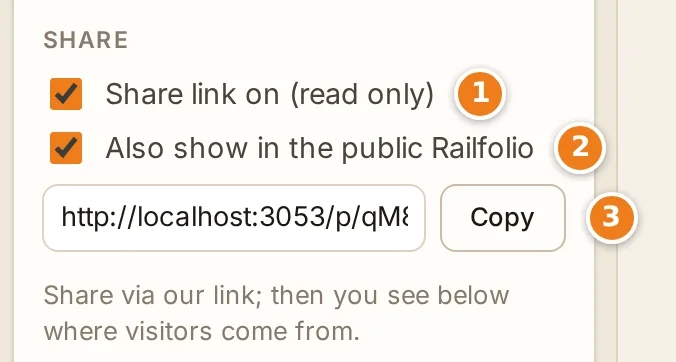
Share link on (1), also in the public Railfolio (2) and Copy (3). To show your plan in the public Railfolio as well, tick Also show in the public Railfolio (2). Leave it off and only people who get the link can see the plan.
Share the link with one of the buttons below: WhatsApp, E-mail, Forum (BBCode) or Facebook (1). The forum button copies ready made BBCode with the link.
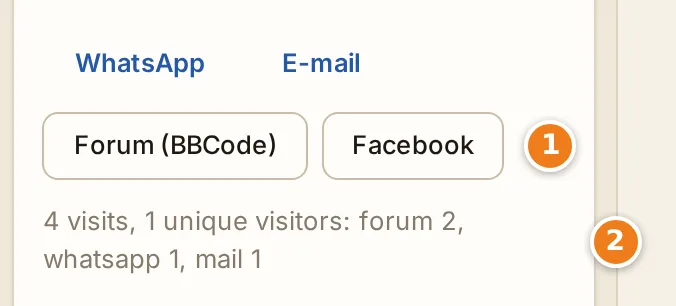
The share buttons (1) and the visitors per channel (2). Later, check below the buttons how many visits your plan had (2). TrackDrawer counts per channel, for example "forum 2, whatsapp 1, mail 1", as long as people arrive through these buttons or the copied link.
Open the link yourself to see what visitors see: the name of your plan (1), the drawing and the "Can I build this?" block (2) with their own stock. With Open as a copy (3) they get their own copy in their account.
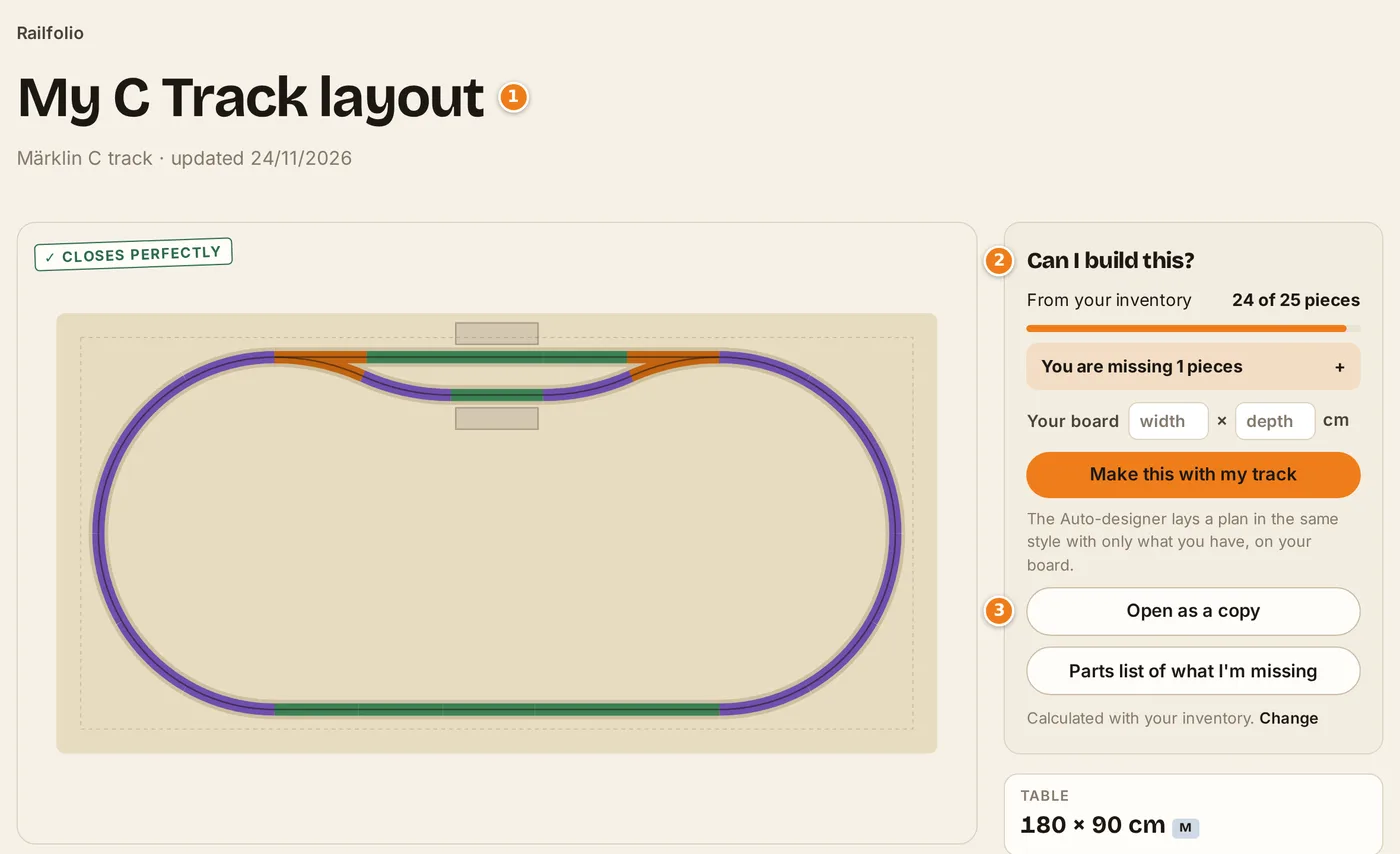
The plan name (1), Can I build this (2) and Open as a copy (3).
Viewing, not editing
Whatever you change in your plan after sharing, visitors see too: the link always shows the last saved version. A copy someone makes is separate from your plan. How to draw a plan online is covered in making a layout in your browser. What visitors see under "Can I build this?" works like the parts list.