Reading the parts list: what you have and what is missing
First layout
Benjamin | TrackDrawer.com · published 24 November 2026
The parts list compares your layout with your stock. Before you go shopping, you see which pieces you already have and which are still missing.
Open your plan and click Parts list at the top right (1). The panel starts with three counters: the number of pieces, the metres of track and how many pieces are short (2).
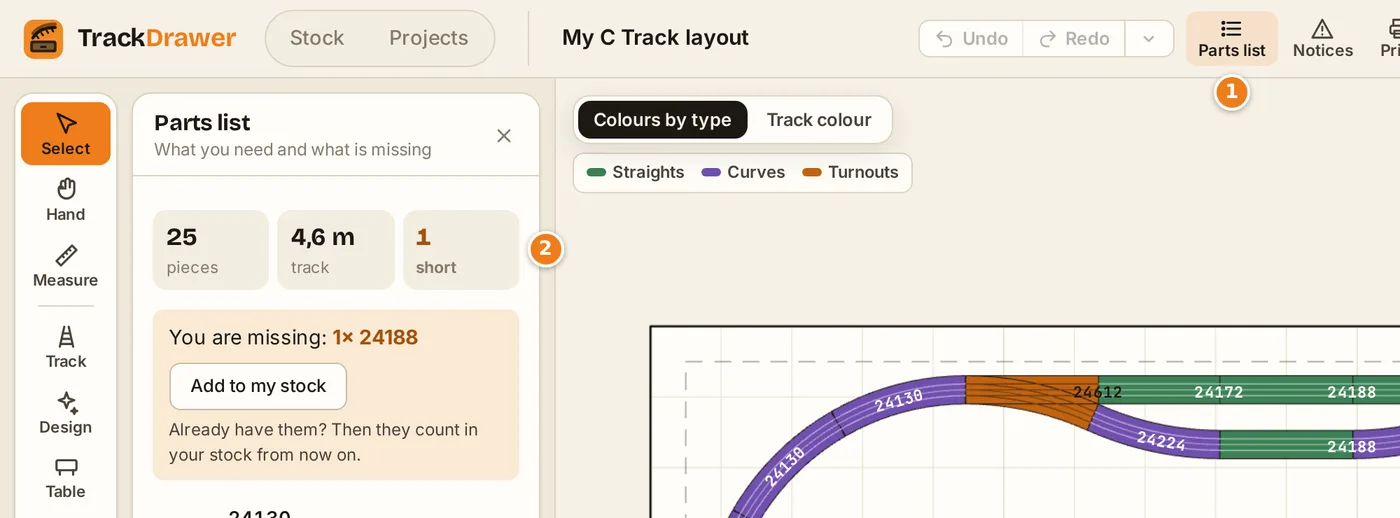
The Parts list button (1) and the short counter (2). Read the lines below. Each line is one item number with its name. On the right you see first how many the plan uses, then how many you have: "12 / 12" means 12 in the plan and 12 in stock (2).
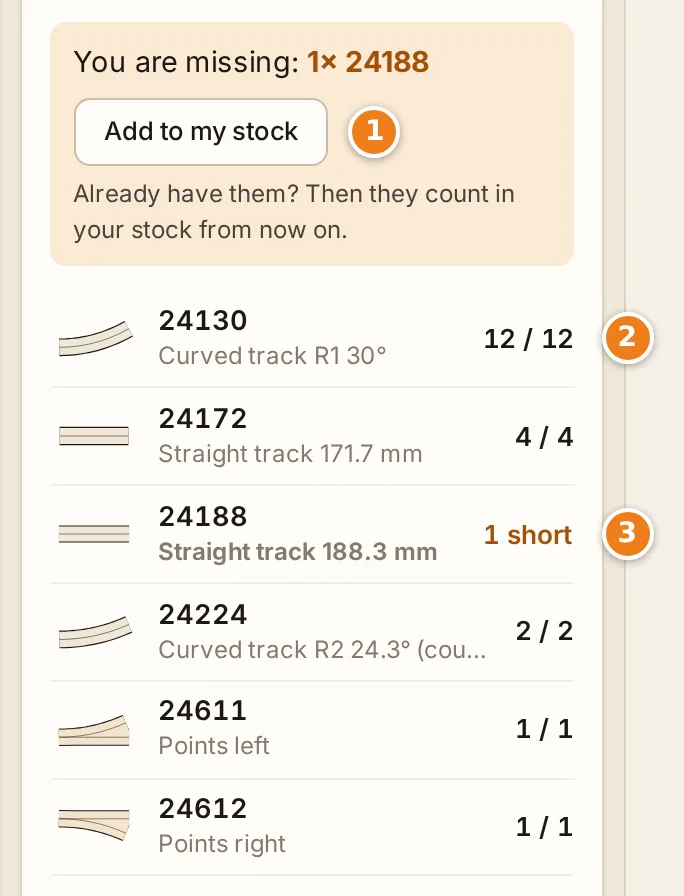
Add to my stock (1), a line that adds up (2) and a line that is short (3). Look for the orange lines. Instead of "in plan / in stock" they say how many are missing, for example "1 short" for the 24188 straight (3). The same pieces are listed together at the top under "You are missing".
Are the missing pieces already in your cupboard but not yet in your stock? Click Add to my stock (1). The short counter drops to 0.
Click Copy as text at the bottom to put the list on your clipboard, for an order or a forum post.
What the parts list does not do
Add to my stock does not buy or order anything: it only adds pieces you already own to your stock. If you want the list as a file, use Download CSV in the Print panel, as explained in making a PDF to scale or a DXF. To top up your stock by item number, see entering your stock. Building a plan from track you already own is covered in a layout from the track you already have.