Using TrackDrawer on your phone
First layout
Benjamin | TrackDrawer.com · published 24 November 2026
On a phone, and on any screen narrower than a tablet held sideways, the editor switches to a layout made for your thumb. Your plan gets the whole screen and the panels slide up from below.
Open a project. At the top is the view bar with Plan, 3D, Photo and Run (1); at the bottom, the bottom bar (2). The plan stands upright, so a long table fills the screen.
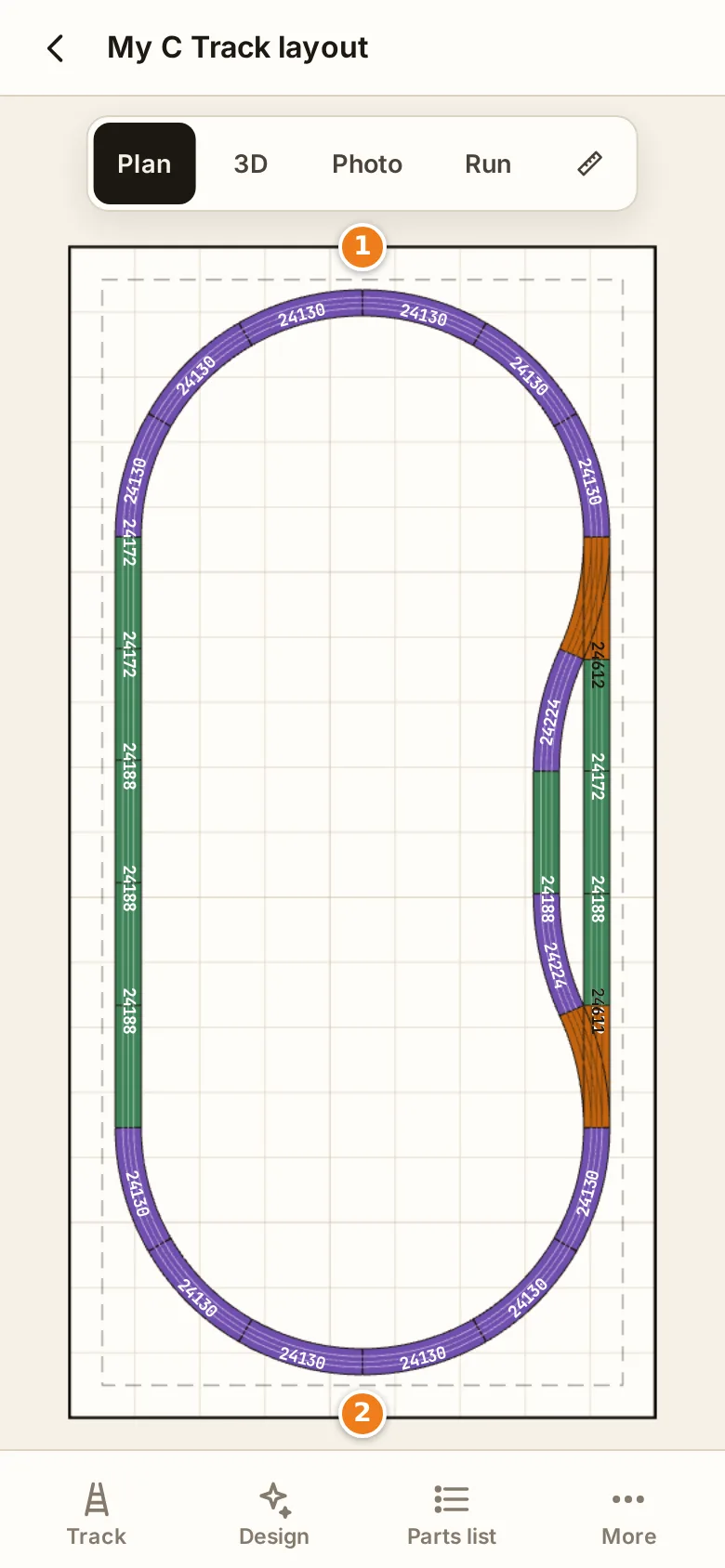
The view bar (1) and the bottom bar (2). Tap Track. A sheet called "Add track" slides halfway up, with the hint "tap to lay" (1). You only see track from your stock, with how many are left on the right; "none left" means they are all in your plan already.
Tap a piece, for example the 24188 straight (2). It lands in the middle of your plan and appears at the top of the sheet as the last piece used.
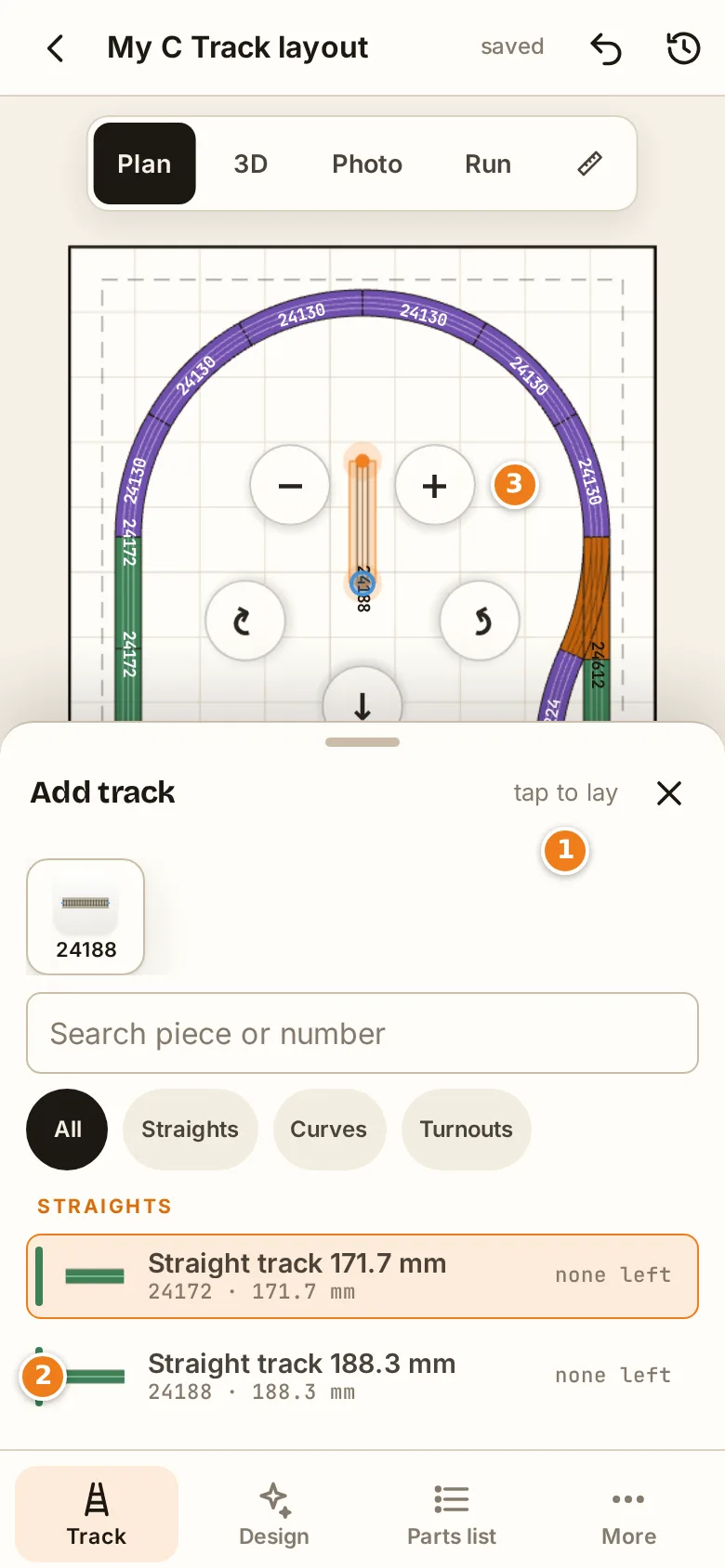
The tap to lay hint (1), the chosen piece (2) and the button for the same piece again (3). Keep building with the buttons around the piece: + lays the same piece again (3), - removes the last piece, and the arrows lay a straight or a curve to the left or right.
Close the sheet with the cross. The selection bar for the chosen piece appears at the bottom, with -15°, +15°, Mirror and Away among others.
Tap More for the other panels (2): Table, Digital, Output and more. At the top you switch Colours by type in the plan on or off (1).
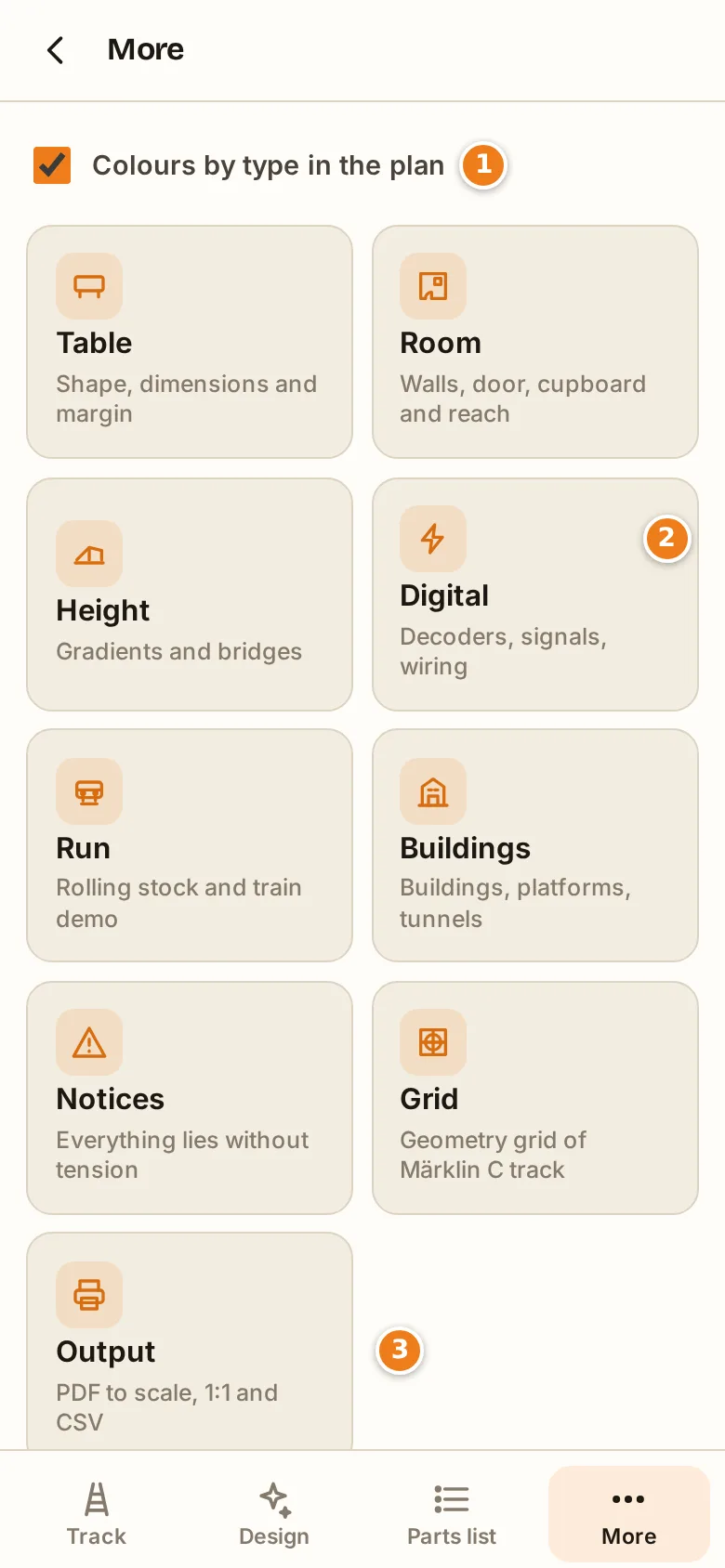
Colours by type (1), Digital (2) and Output (3).
What a large screen adds
The features are the same, only the arrangement differs. On a laptop the panels sit in a column next to the plan, and you also have the keyboard for live building. Why a thumb friendly layout matters is explained in a layout on your phone. The Parts list at the bottom works as described in reading the parts list.