Laying track yourself in the editor
Expanding
Benjamin | TrackDrawer.com · published 24 November 2026
If you don't let the Auto-designer lay the whole plan, you place the track piece by piece. In this example you lay the first half of an oval in Märklin C track from the starter set, on a 180 x 90 cm baseboard.
Click Track in the tool rail on the left. The list only shows pieces from your stock for this plan's track system. Search by name or number (1) or filter by type (2). On the right of each row you see how many pieces you have left (3); "none left" means they are all in your plan.
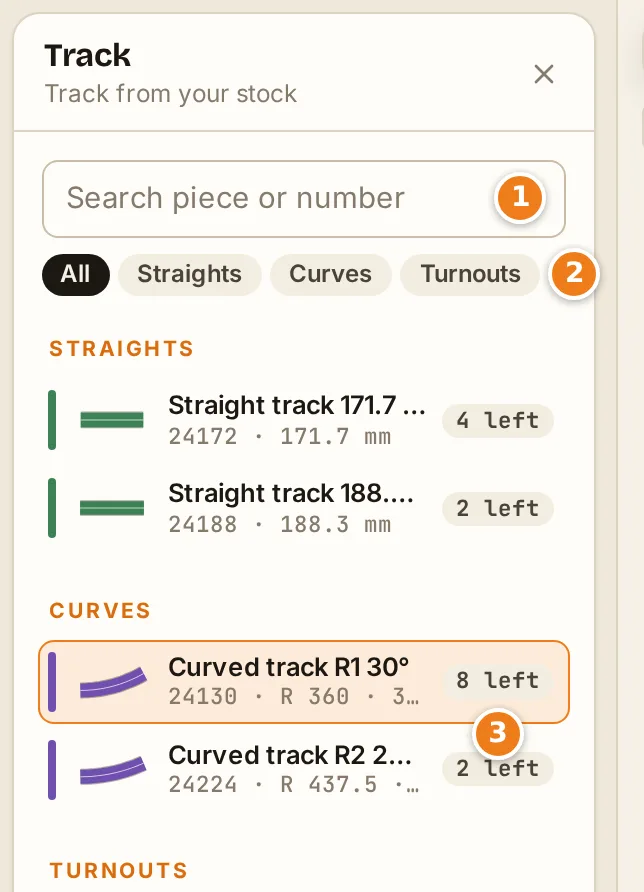
Search box (1), filter by type (2) and what you have left (3). Click a straight, for example 24188. It appears in the middle of the view and is selected. Drag it with the mouse to where your track should start.
Click another 24188, then 24130 four times. Each new piece connects to the free end of the selected piece and becomes the selected piece itself. An open end shows as an orange dot (1).
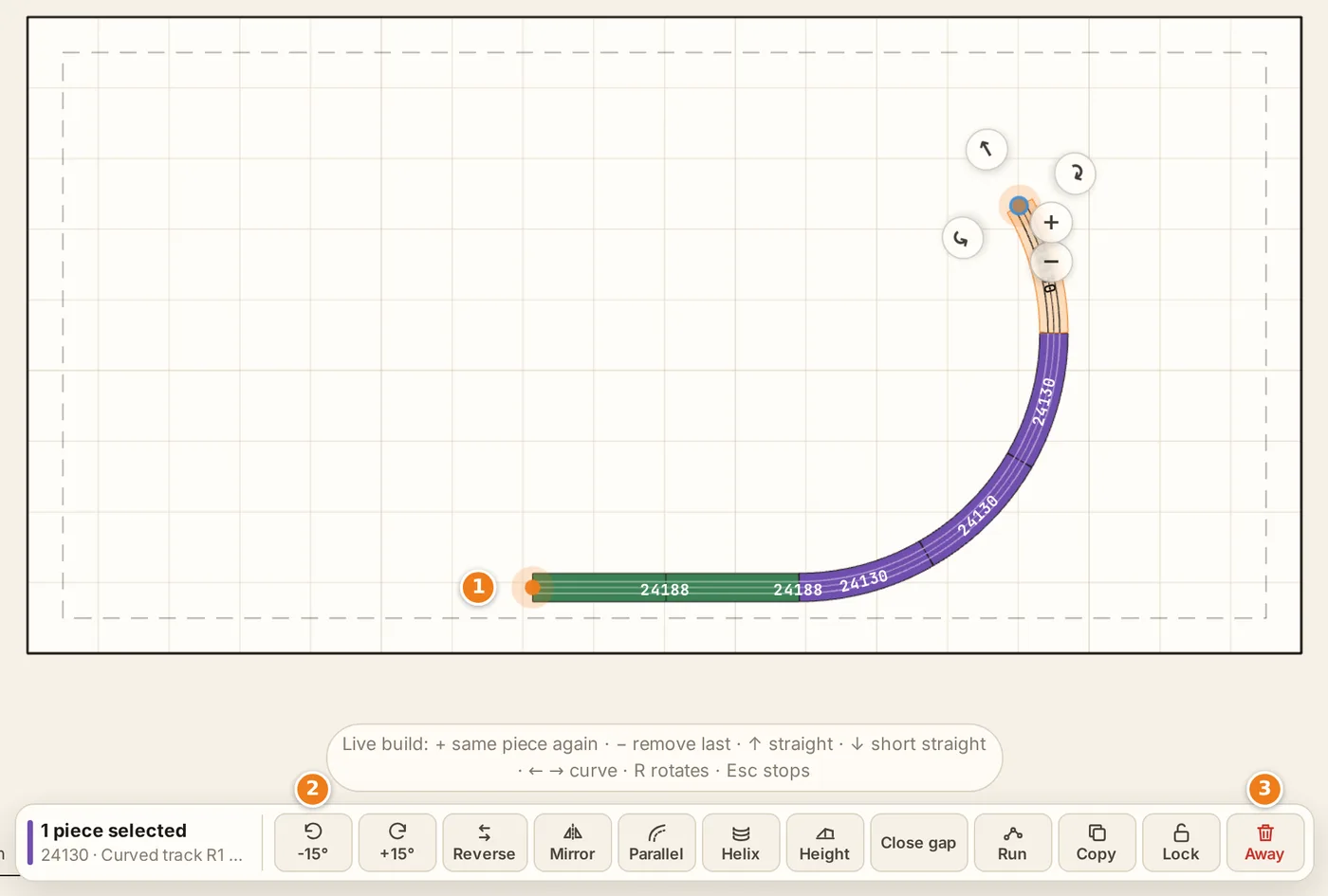
An open end (1), rotating in 15 degree steps (2) and Away (3). A curve from the list always turns the same way. If it has to go the other way, press Esc, click the curve (it now lies loose in the middle) and drag one of its ends onto the open end: it snaps into place.
Rotate a loose piece in 15 degree steps with -15° and +15° in the selection bar (2), or with R and Shift+R. Mirror flips the whole group of connected pieces.
Wrong piece? Click Away (3) or press Delete. Undo at the top (Ctrl+Z) takes back the last step.
Faster
The arrow keys are quicker still: read building live with the keys. If a gap is left, let the gap finder look for the right pieces. What you lay in the app, you then lay on the baseboard: see from plan to baseboard.