Choosing a variant and editing it further
First layout
Benjamin | TrackDrawer.com · published 24 November 2026
A variant from the Auto-designer is not set in stone. Once you take it over, it is a plan like any other: you move, rotate and remove pieces, and the checks and the parts list keep up.
In Variants from your stock, pick the plan you want and click Use this plan. If there was already track on the table, the app first asks whether the current plan may be replaced.
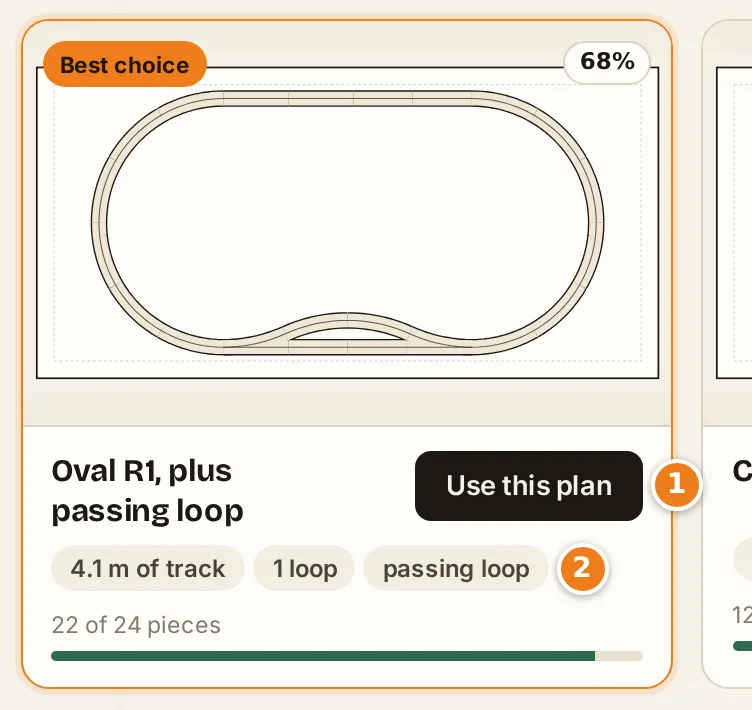
Use this plan (1); the features (2) show length, loops and passing loop. The plan now sits on your table, and the status bar says No errors. Make sure Select is active on the left, then click a piece. It turns orange and the selection bar appears at the bottom.
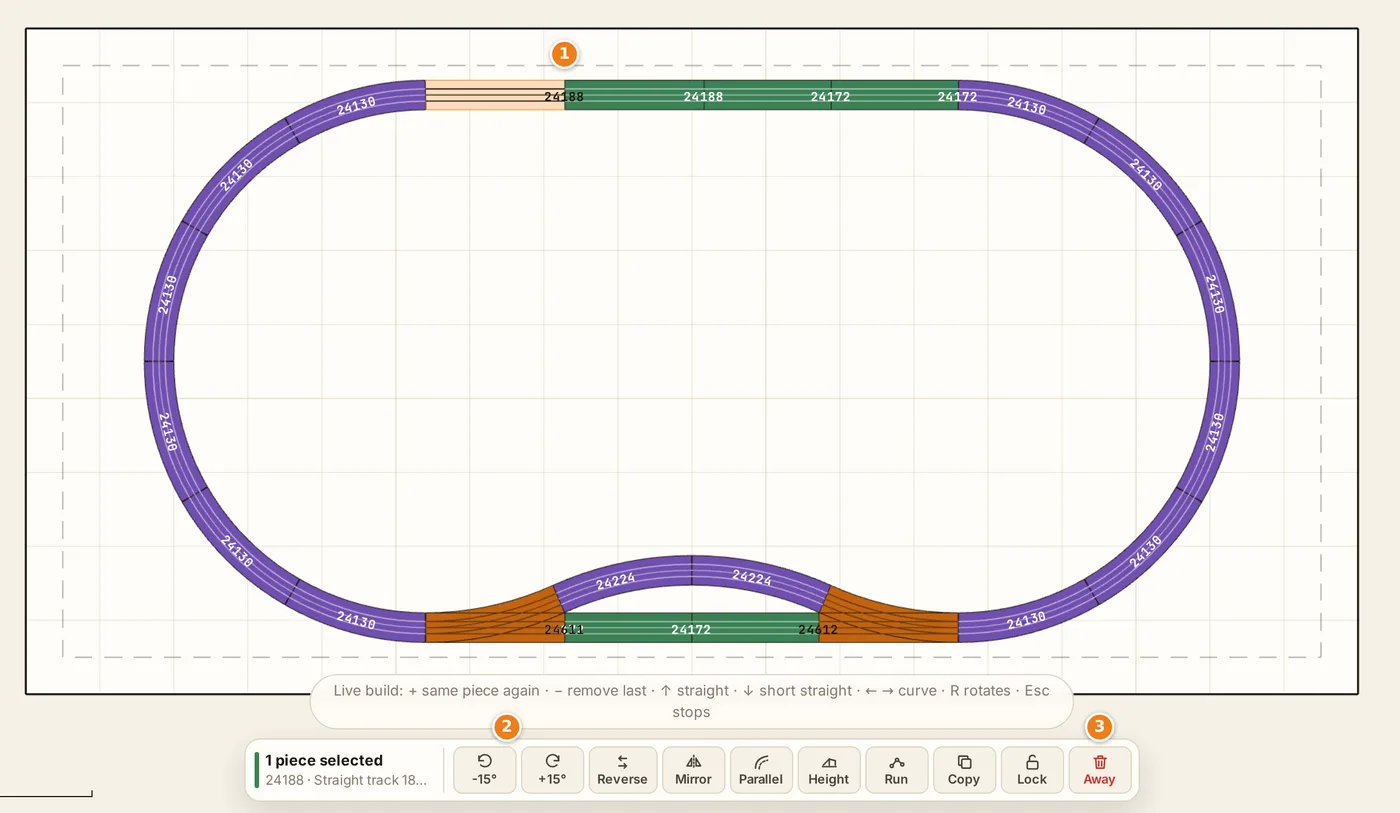
The selected piece (1), rotating in 15 degree steps (2) and Away (3). Rotate the piece with -15° and +15°, or with the R key. Drag it with the mouse to move it.
To move the whole layout, click Run: every piece connected to it is selected and they all move together.
Remove a piece with Away or the Delete key. The gap stays visible as two orange dots, and the status bar reports the open ends.
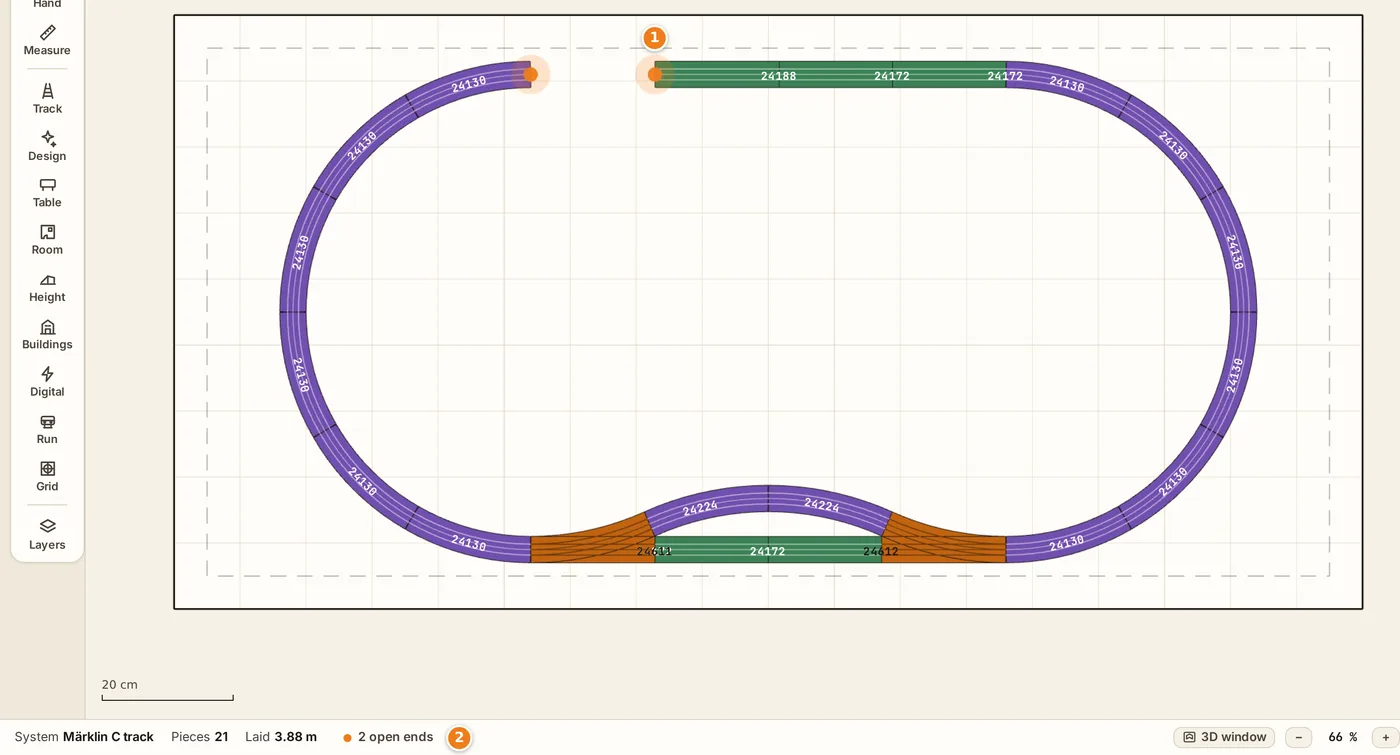
The open ends in the plan (1) and in the status bar (2). Didn't mean to? Click Undo at the top. The piece is back and the status bar shows No errors again.
Back to the other variants
Prefer a different plan after all? Open Design again and click Design again, or pick another card. How to lay pieces from the palette yourself is explained in laying track in the editor. Why a gap in the track counts as an error is covered in finding open ends and gaps.