Entering your track stock by item number
First layout
Benjamin | TrackDrawer.com · published 24 November 2026
TrackDrawer only designs with track you actually own. That is why you enter your stock by item number; the app knows the dimensions of every piece from the catalogue.
Click Stock at the top and pick your track system, here Märklin C track. If you have a starter set, add it in one go first: see adding a starter set.
Scroll to Catalogue and stock and type the item number in the search field, for example 24611 for the left turnout. The list now shows only that piece.
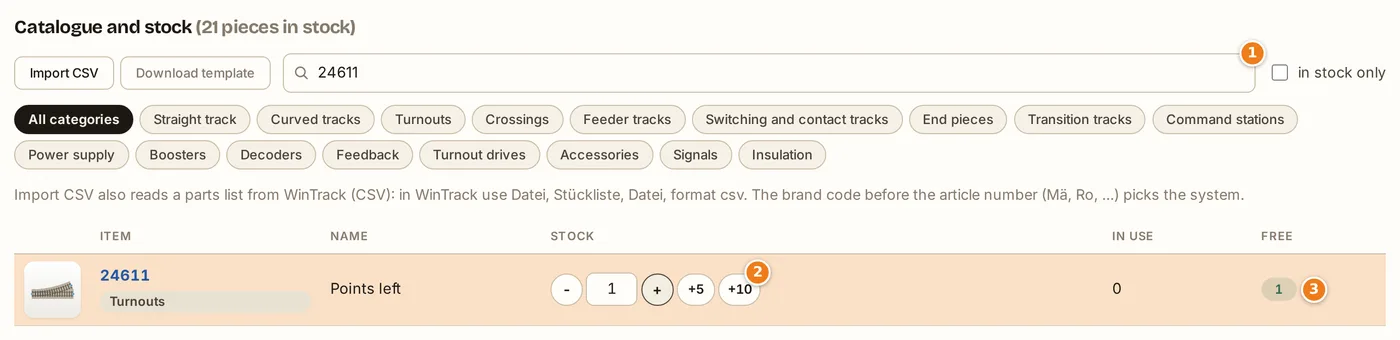
Search field (1), quantity with plus and minus (2) and what is still free (3). Click + until the right number shows. For larger quantities use +5 and +10, or type the number in the box and press Enter. Too many? Click -.
Do the same for your other loose pieces. In the example, the right turnout 24612 and two curved turnout links 24224 are added.
Check the counters at the top. After the starter set and these four pieces you have 24 pieces in stock, 2 of them turnouts.

Pieces in stock (1) and the number of turnouts (2).
In use and free
Next to each quantity are two columns. In use counts how many of that piece sit in your plans, Free what is left over. If the box turns red, your plans use more pieces than you own. What you are short of shows per plan in the parts list. With your stock complete, let the Auto-designer generate variants.