Generating variants with the Auto-designer
First layout
Benjamin | TrackDrawer.com · published 24 November 2026
The Auto-designer lays track plans from exactly the pieces in your stock, on the table you have set up. The example: the R1 oval starter set plus two turnouts and two curved turnout links, on 180 x 90 cm.
Open your project and click Design on the left. The track system and table size are shown at the top; if the size is wrong, click Change size.
Under Goals, tick what the layout should do. Closed loop, as long as possible is on by default; add Several trains at once if you want a passing loop.
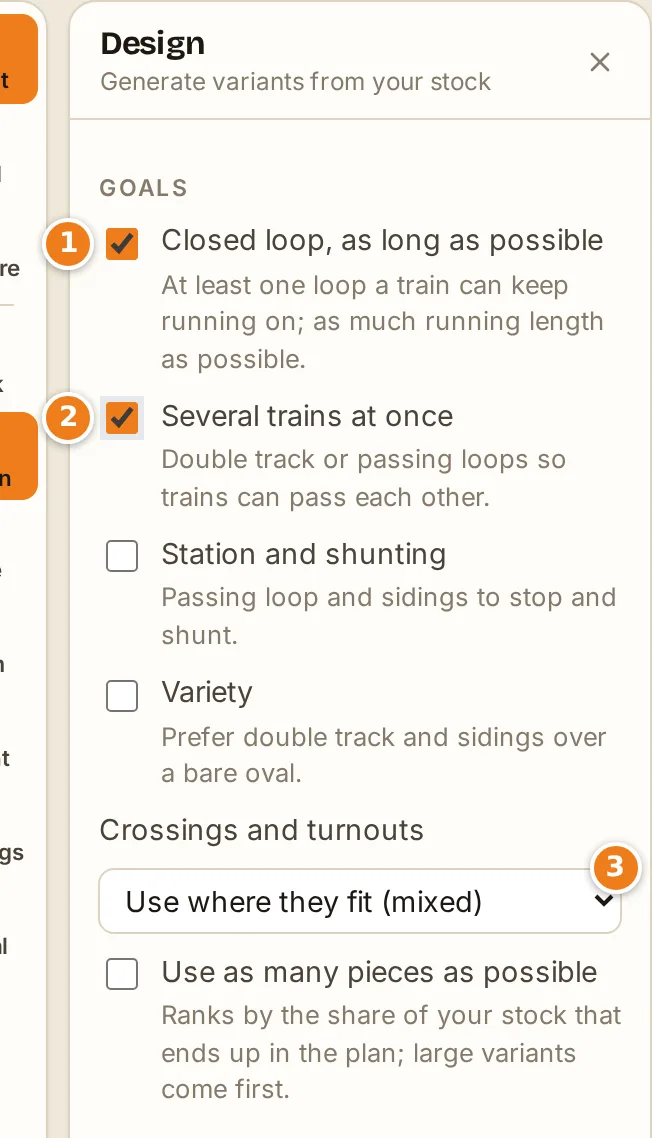
Two goals ticked (1, 2) and the choice for crossings and turnouts (3). Under Crossings and turnouts, choose whether the Auto-designer mixes them in, puts them first or leaves them out. With Use as many pieces as possible, the variants that use most of your stock go to the top.
Set the Minimum radius: with long coaches you pick a wider curve. Then set the Number of variants.
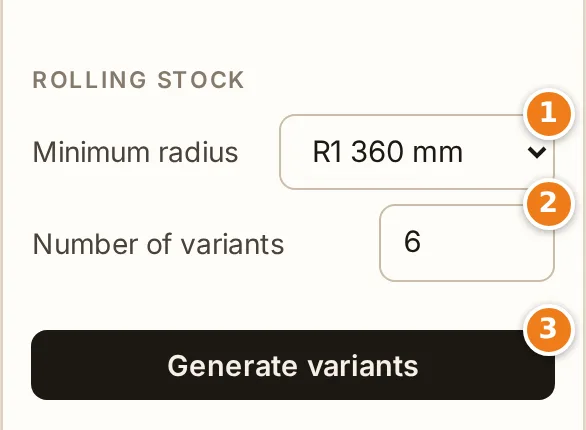
Minimum radius (1), number of variants (2) and Generate variants (3). Click Generate variants. After a few seconds Variants from your stock opens: one card per plan, with a percentage that shows how well the plan meets your goals.
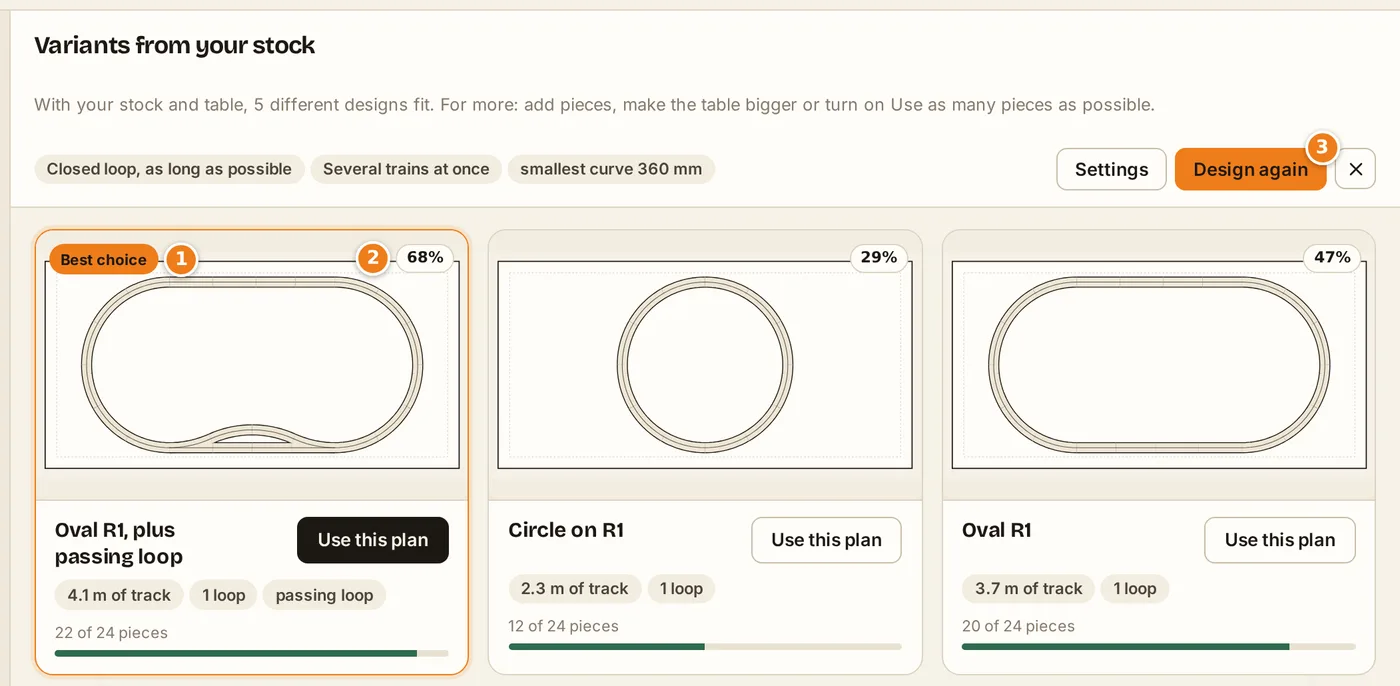
The best choice (1), the score for your goals (2) and Design again (3).
What the example produced
With this stock on 180 x 90 cm, the Auto-designer found 5 different plans, even though we asked for 6. At the top is "Oval R1, plus passing loop": 22 of the 24 pieces and 4.1 m of track. Below it are a circle and three ovals. When you get fewer plans than you asked for, the app tells you what helps: add pieces, make the table bigger or switch on Use as many pieces as possible.
How to take over a variant and keep editing it is explained in choosing a variant. Which shapes the Auto-designer knows and what it checks is covered in the Auto-designer.