Closing a gap with the gap finder
Expanding
Benjamin | TrackDrawer.com · published 24 November 2026
An oval that almost closes is, in real life, an oval that strains. The gap finder searches your stock for the pieces that close a gap exactly. In this example a 24172 went in at the top instead of a 24188: the oval comes up 16.6 mm short.
Look at the status bar: "1 error · 2 open ends" (3). Click it and the Notices panel names the 16.6 mm closure error (2). In the plan the pieces at the joint turn red (1).
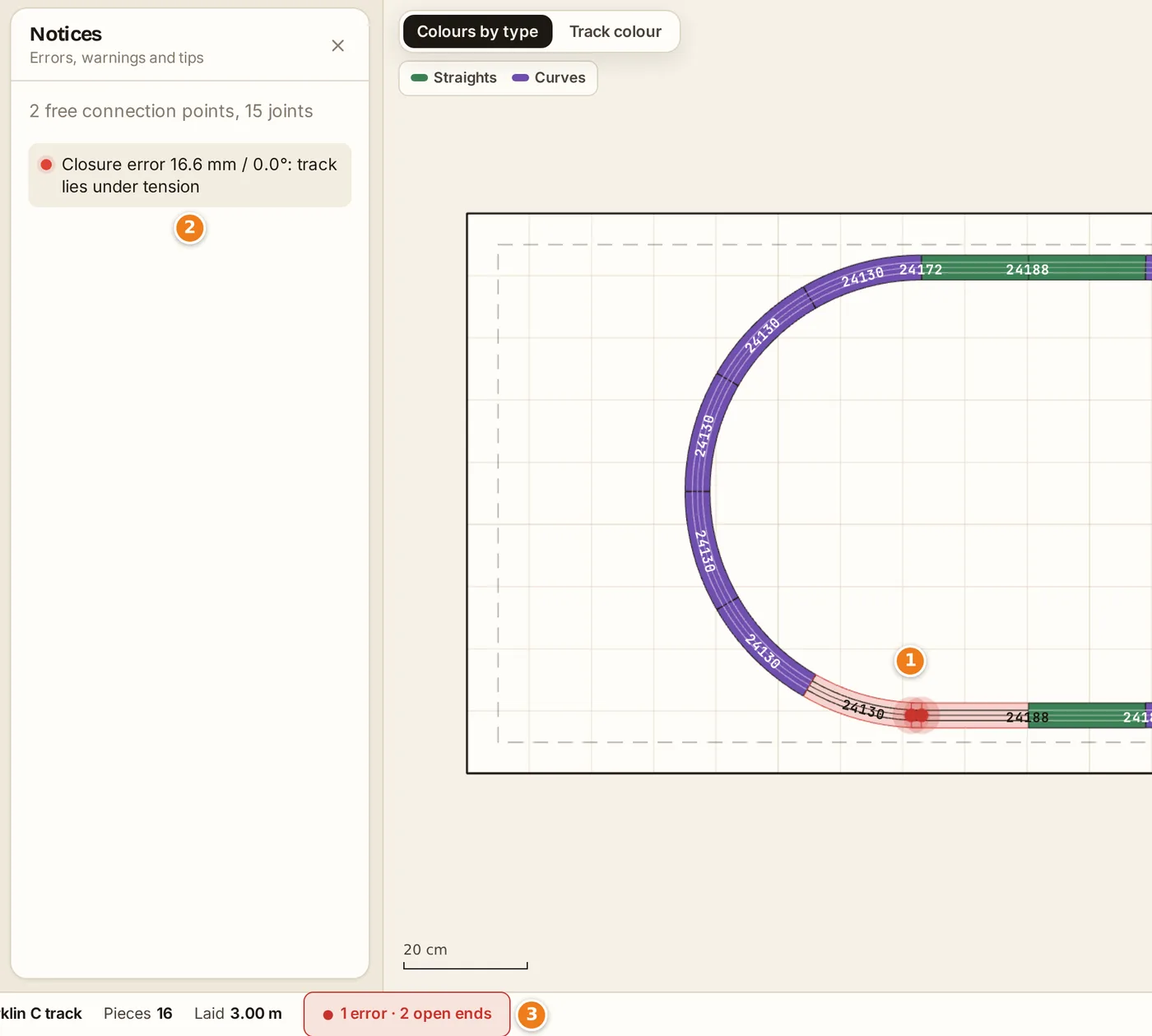
The joint (1), the notice (2) and the counter in the status bar (3). Click the straight at the red joint and click Away. Now there is a real gap, with an orange dot on each side (1).
Select the piece on one side of the gap. The selection bar now shows Close gap (2). The button only appears when the selected piece has a free end.
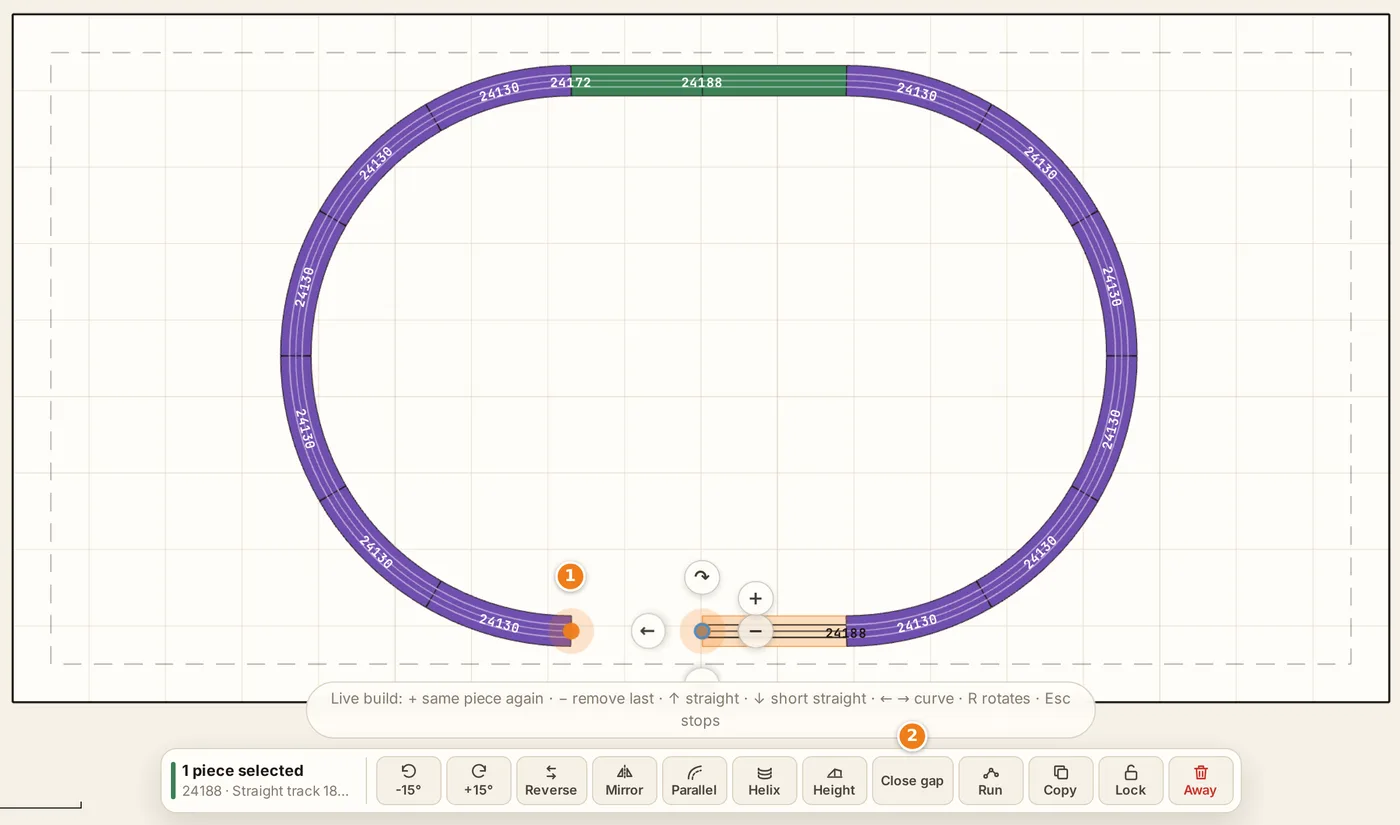
The orange dot on the other side (1) and the Close gap button (2). Click Close gap. The button changes to Pick a connection point... and the orange dots become large discs. Click the disc on the other side of the gap.
The gap finder lays the pieces. Here it chose one 24172 (1): "Gap closed with 1 pieces" (2). The status bar says "No errors" (3).
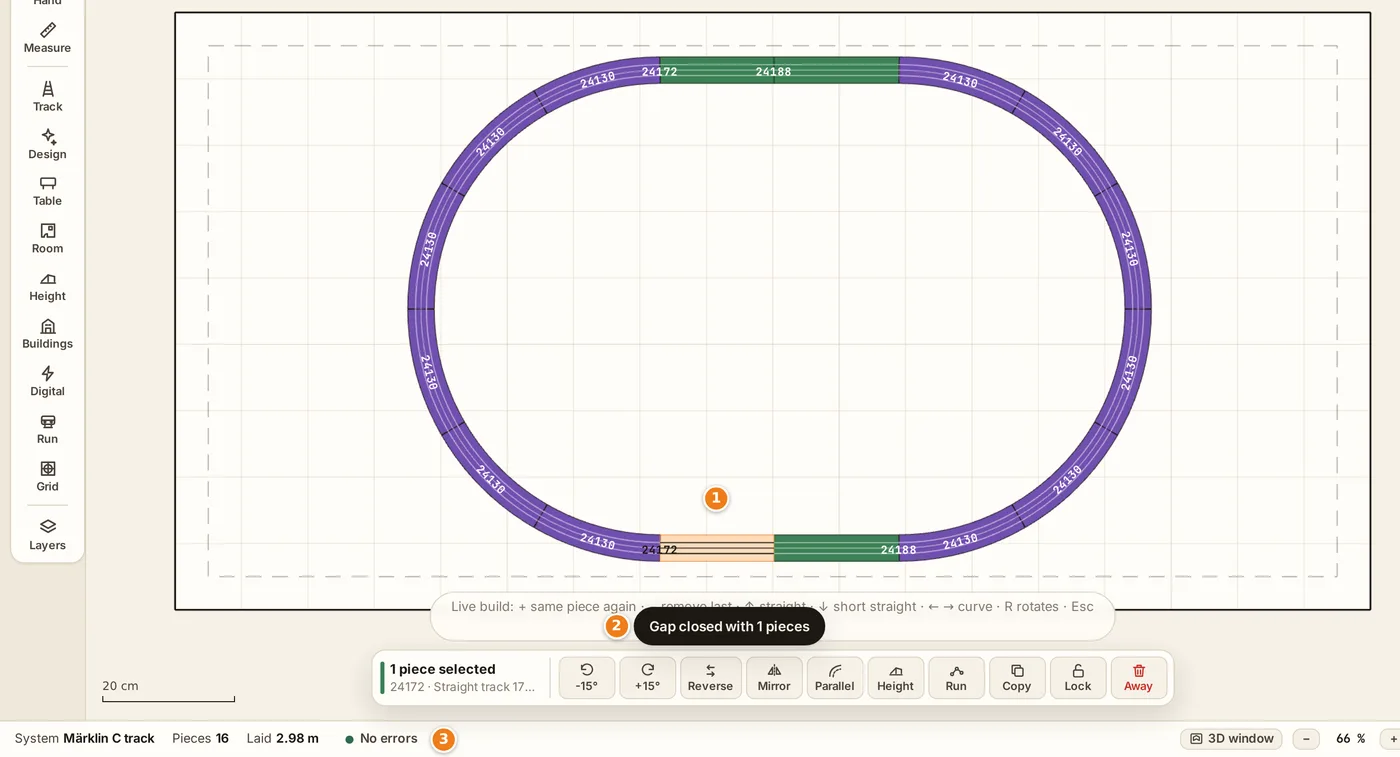
The new piece (1), the confirmation (2) and No errors (3).
Why the gap has to be open first
With a closure error the ends almost touch. No piece fits in between; in a real gap one does. Read more about gaps and open ends in finding open ends and gaps in your plan, and about all notices in reading and fixing notices.