Reading and fixing notices in the editor
Expanding
Benjamin | TrackDrawer.com · published 24 November 2026
TrackDrawer checks your plan while you draw. Anything that does not work ends up in the Notices panel: red is an error, orange a warning, and suggestions sit under Tips. In this example the oval with a passing loop lies 4.5 cm too far up on the 180 x 90 cm baseboard.
Click Notices at the top, or click the counter in the status bar. The top of the panel shows the number of free connection points and joints (1), with the notices below (2). Here it says six times "lies outside the table or in the edge margin".
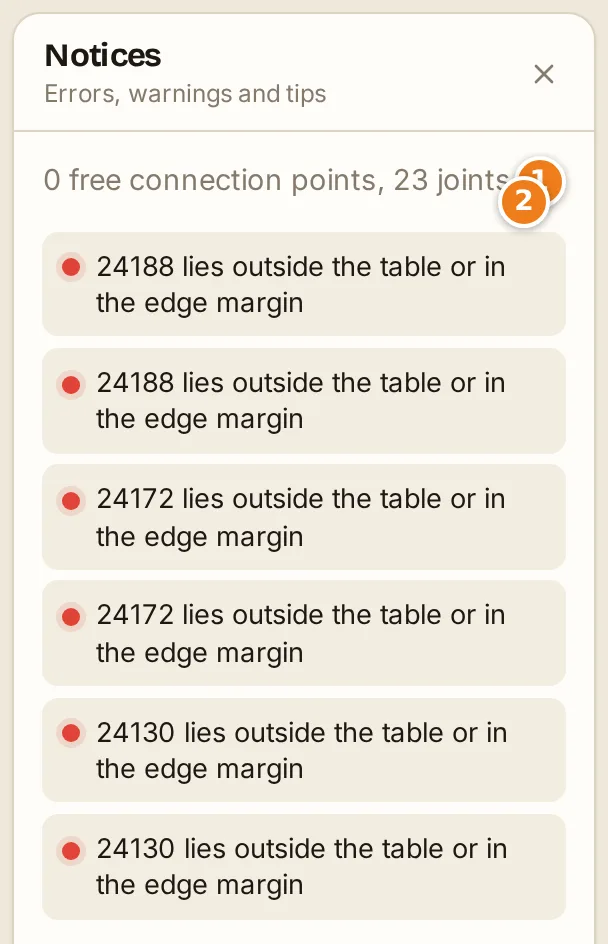
The count of connection points (1) and the first notice (2). Click a notice. The piece is selected and the selection bar appears. The pieces with an error are red (1).
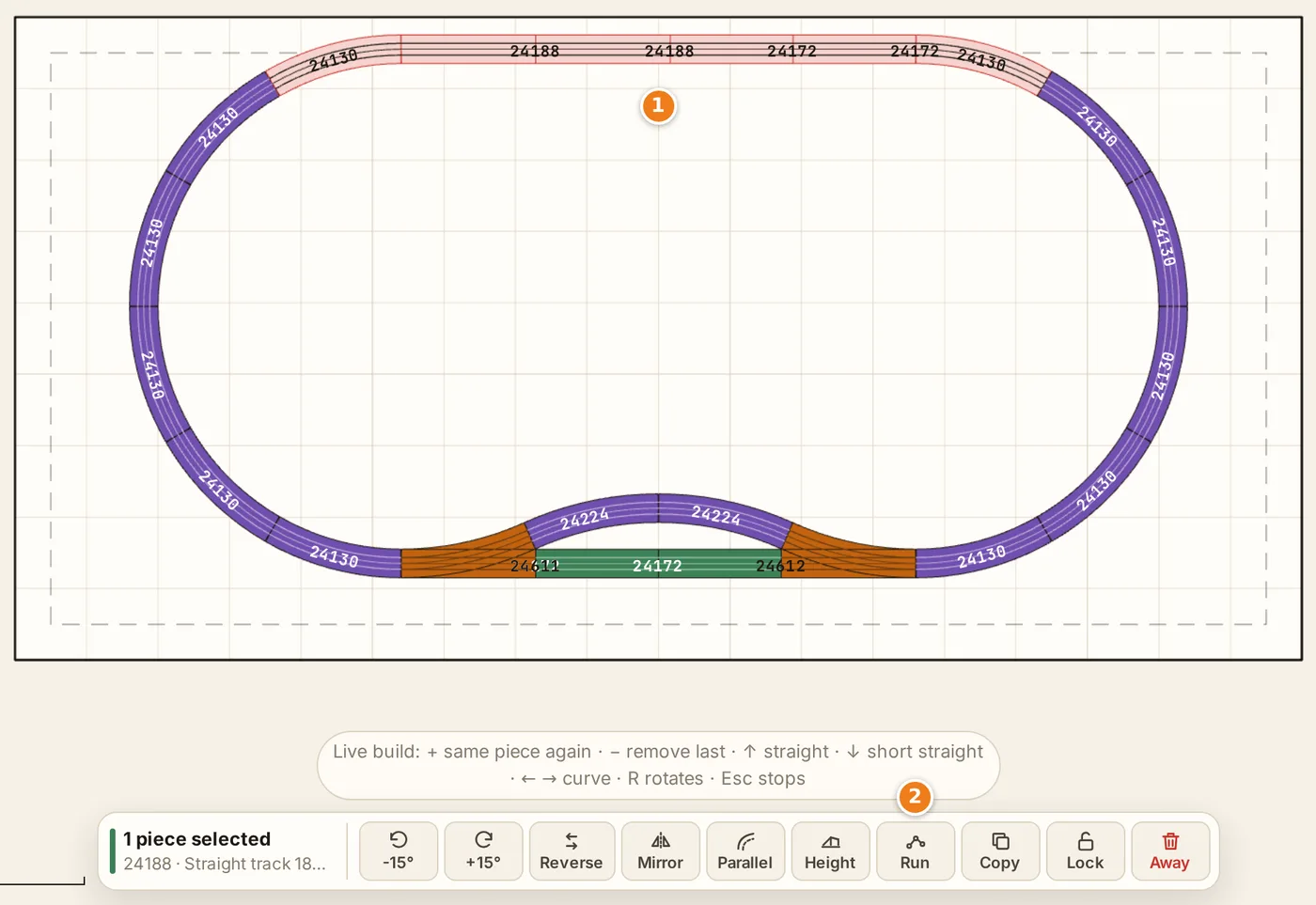
The red pieces in the edge margin (1) and the Run button (2). Fix the cause. Here you click Run (2) in the selection bar: every piece connected to it is selected. Drag them down 4.5 cm together.
The panel updates straight away. When it says "Everything lies without tension." (1), there are no errors or warnings left.
If your plan has a passing loop or a siding, the panel also measures its length. Enter your train length under Length of your longest train (2), here 30 cm: "Your 30 cm train fits, with 4 cm to spare." Show where (3) points the track out in the plan.
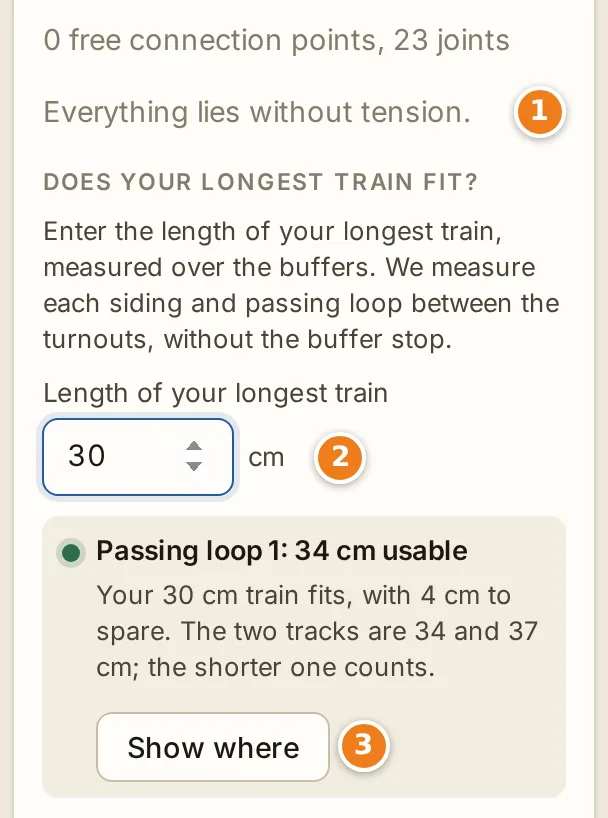
No more errors (1), your train length (2) and Show where (3).
More on notices
A red joint between two pieces is a closure error: read closing a gap with the gap finder. Open ends and gaps are covered in finding open ends and gaps in your plan.