Viewing your plan in 3D and running a train
First layout
Benjamin | TrackDrawer.com · published 24 November 2026
A plan on paper is flat. In 3D you see what your layout looks like on the baseboard, and the demo train shows whether trains take your turnouts the way you expected. The example is the oval with a passing loop from the Märklin C track starter set on 180 x 90 cm.
Click 3D at the top right (1). Drag with the mouse to orbit around the baseboard, scroll to zoom and drag with the right mouse button to pan. The hint at the bottom says the same (3). Plan takes you back to the drawing from above.
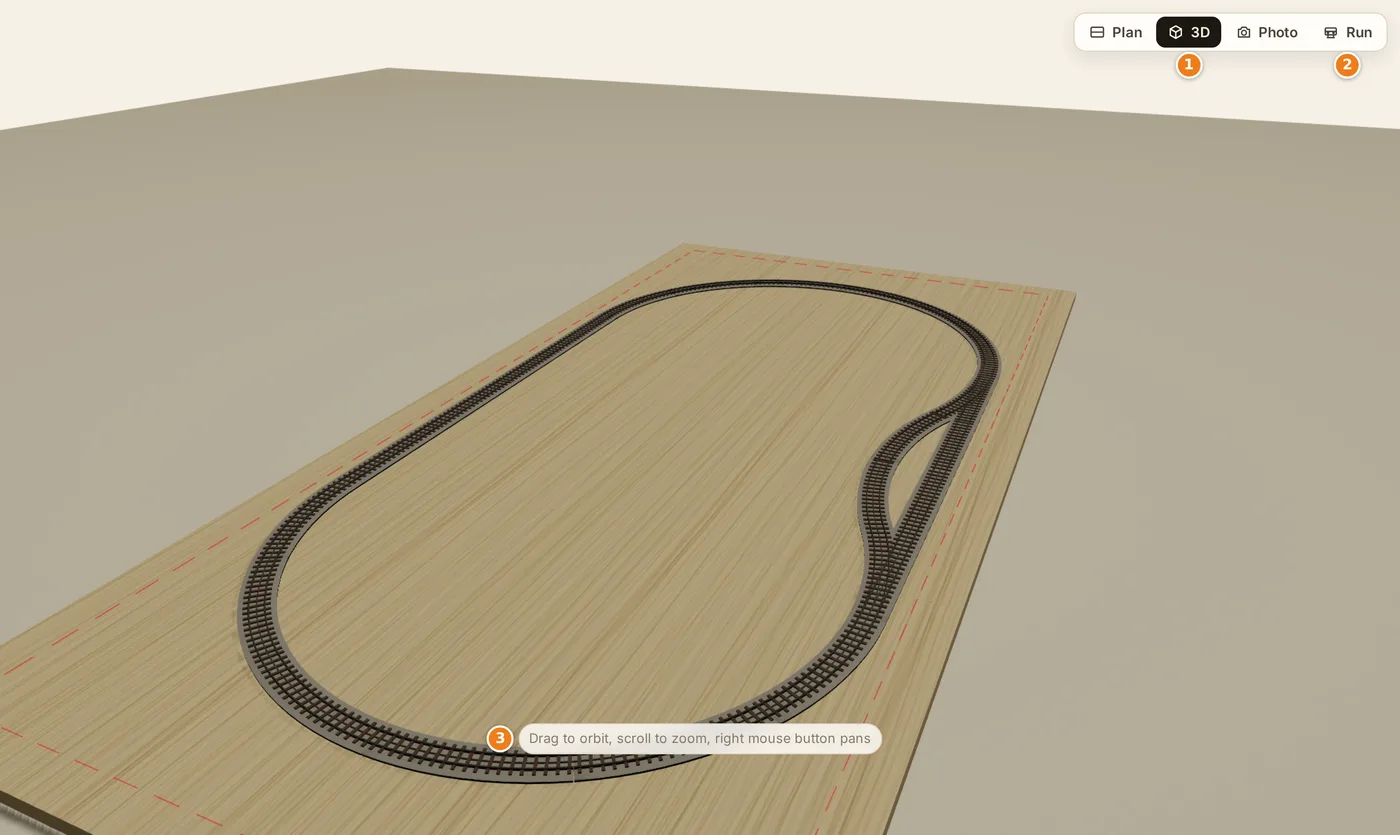
The 3D button (1), the Run button (2) and how to look around (3). In the plan, select the piece where the train should start, here the last straight at the back, and click Run (2). The app puts a demo train on it and you are in the cab.
At the top you see the next turnout and how far away it is (1), with its settings and their keys. Press the key of the other setting, here E to take the turn to the right (A keeps the train straight on): the setting that lights up in orange is the route the train will take.
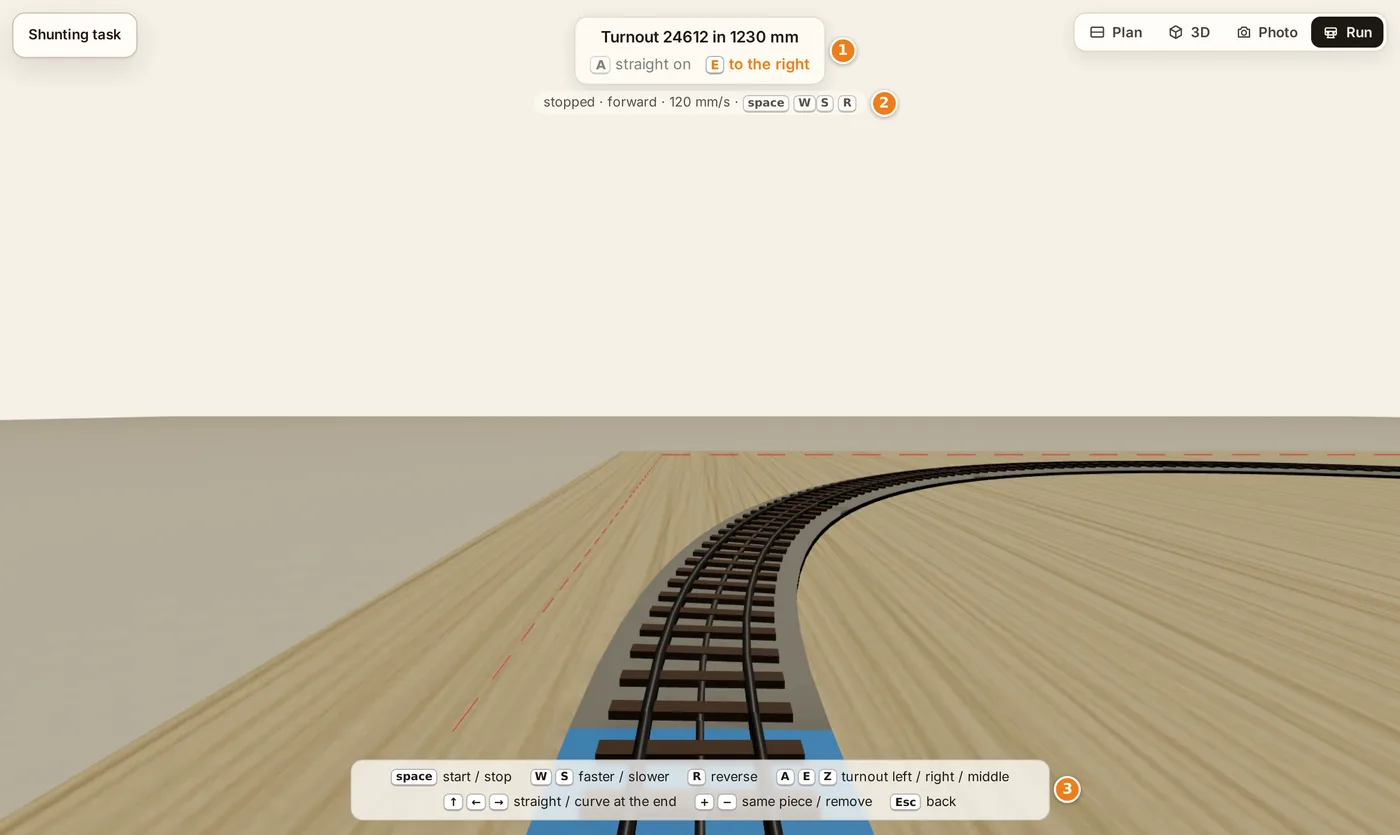
The next turnout (1), the running state (2) and the keys (3). The space bar starts and stops the train, W and S make it faster or slower, and R reverses it (2). The list of keys is at the bottom (3). Esc takes you back to 3D.
Prefer to watch from outside? Open Run on the left. Under Train demo you start and stop the train (1) and climb back in with Ride along (cab view) (2). The panel says it too: click a turnout in the demo to throw it (3).
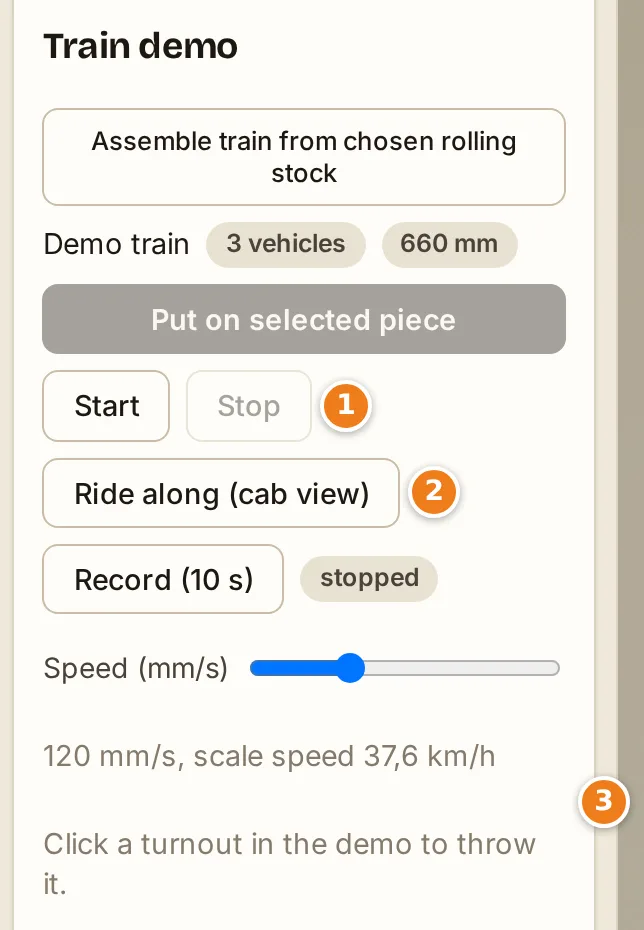
Start and Stop (1), Ride along (2) and throwing turnouts (3).
Next
A gradient or a bridge really comes to life in 3D: read making a gradient and a bridge. If something is wrong, you will find it in the notices.