TrackDrawer in ChatGPT and Claude
With TrackDrawer in your AI assistant, the assistant works with our track catalogue and the Auto-designer. Ask what you can build with your starter set or whether an oval fits your table, and you get track plans that close, on the real dimensions of the track.
Adding it needs no login or account. To save, edit, view in 3D or print a plan, you open it on trackdrawer.com.
- Address
- https://trackdrawer.com/mcp
- Where to paste
- ChatGPT: Settings, Apps. Claude: Settings, Connectors.
- What you get
- Layout plans as cards in the chat: drawing, size, parts list and a link to the editor.
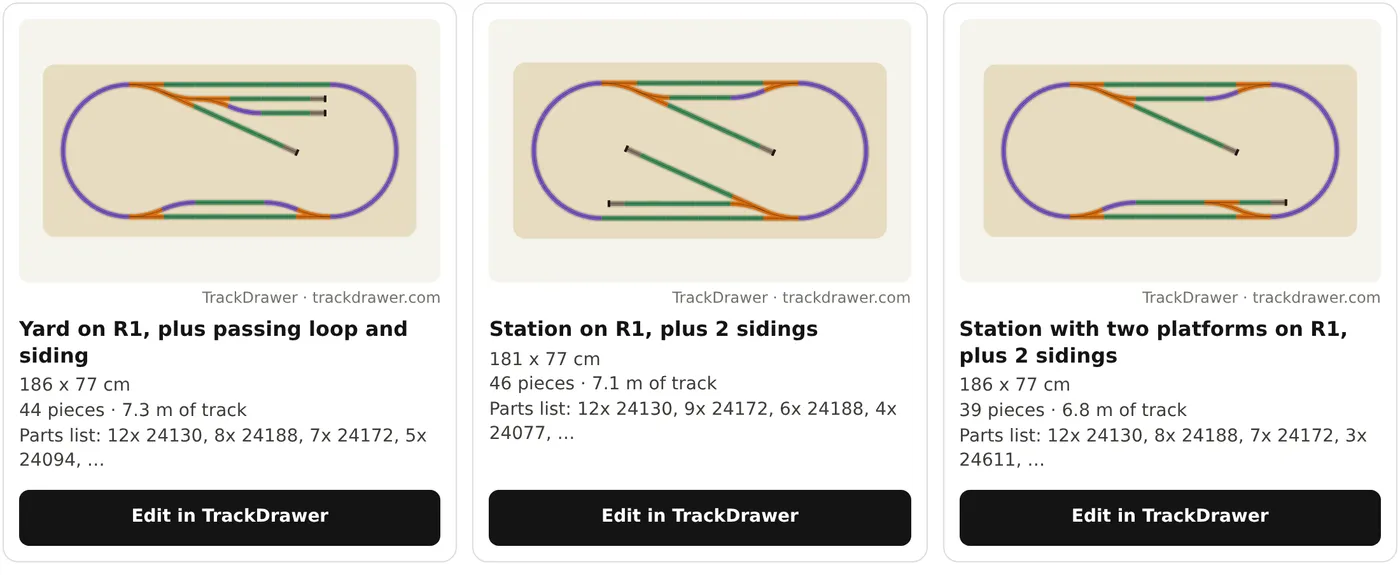
What TrackDrawer does in the conversation
The assistant searches our catalogue of track systems, pieces and starter sets, checks whether a shape fits your table and lets the Auto-designer lay out track plans. In ChatGPT and Claude those plans appear as cards with a drawing, the size and the pieces.
Each card has a link to the plan on trackdrawer.com. There you see the drawing and the parts list without an account, and open the plan in the editor.
Add to ChatGPT
If TrackDrawer is listed in the ChatGPT apps, pick it there and click Connect. You can also add it yourself with the server address:
- In ChatGPT, open Settings and choose Apps.
- Under Advanced settings, turn on developer mode (not every ChatGPT plan has it).
- Choose Create, enter TrackDrawer as the name and https://trackdrawer.com/mcp as the URL. Choose no authentication.
- In a new chat, pick TrackDrawer under apps and ask your question.
Add to Claude (web and Claude Desktop)
If TrackDrawer is listed in the Claude connectors, pick it there. You can also add it as a custom connector:
- In Claude, open Settings and choose Connectors.
- Choose Add custom connector, enter TrackDrawer as the name and https://trackdrawer.com/mcp as the URL.
- Click Add. The connector then also appears in Claude Desktop, with the same account.
- Turn TrackDrawer on in the chat (the connectors menu below the input field) and ask your question.
Add to Claude Code
Run this command in your terminal:
claude mcp add --transport http trackdrawer https://trackdrawer.com/mcpAdd to Gemini CLI
Add the server to your Gemini CLI settings file (~/.gemini/settings.json):
{
  "mcpServers": {
    "trackdrawer": { "httpUrl": "https://trackdrawer.com/mcp" }
  }
}
The seven tools
The assistant picks the tool itself. All tools are read-only: they change nothing and save nothing to an account.
search_track_systems: searches track systems by brand, scale or name.get_track_system: gives the data of one track system: radii, straights, turnouts and the distance between two parallel tracks.search_track_pieces: searches pieces by article number or description, with their dimensions.search_starter_sets: searches starter sets and extensions, with their contents.check_layout_fit: checks whether an oval or a dogbone with a chosen radius fits your table, and if not, which table you need.design_layout: lets the Auto-designer lay out one to three track plans from a set, from your own pieces or from anything available, on your table or on the floor.search_guide: finds the three best matching articles in the TrackDrawer Guide.
Example questions
- What can I build with my Märklin C track starter set on a 180 x 90 cm table?
- Does an oval with R2 curves of Märklin C track fit on 160 x 80 cm?
- Design a floor layout with the IKEA Lillabo basic set.
- Which pieces are in the Märklin starter set 29000?
- How steep can a gradient be for H0?
What the connection does not do
The connection does not know your TrackDrawer account: it does not see your plans or your inventory and saves nothing to your account. It does not draw gradients or bridges; you make those in the editor on trackdrawer.com.
Privacy in short
TrackDrawer only receives what the assistant passes to a tool, such as the track system, the table size or your pieces, the name of the app (ChatGPT, Claude or another) and the IP address of the server that asks. We do not receive your conversation, your name, your email address or your location.
A request stores nothing: the link carries the request itself and is valid for 90 days. Only when someone opens the link is the design calculated again; then we keep it for 90 days. The server log gets one line per call (tool, app, outcome, duration), without your request and without IP address, and is kept for 7 days. We only use the IP address in working memory, to limit the number of requests per address. We do not build profiles.
Read the full privacy statement
Help and questions
Something not working as expected, or a plan with an odd result? Email hello@trackdrawer.com with your question to the assistant and the link to the plan. You get a reply from the maker himself.