Adding a starter set to your stock
First layout
Benjamin | TrackDrawer.com · published 24 November 2026
A starter set easily holds twenty pieces. Rather than typing them one by one, you add the whole set at once. The example uses the Märklin R1 oval starter set (29074).
Click Stock at the top and pick your track system in the row of buttons, here Märklin C track. Quick start now lists the starter sets and extension sets for that system.
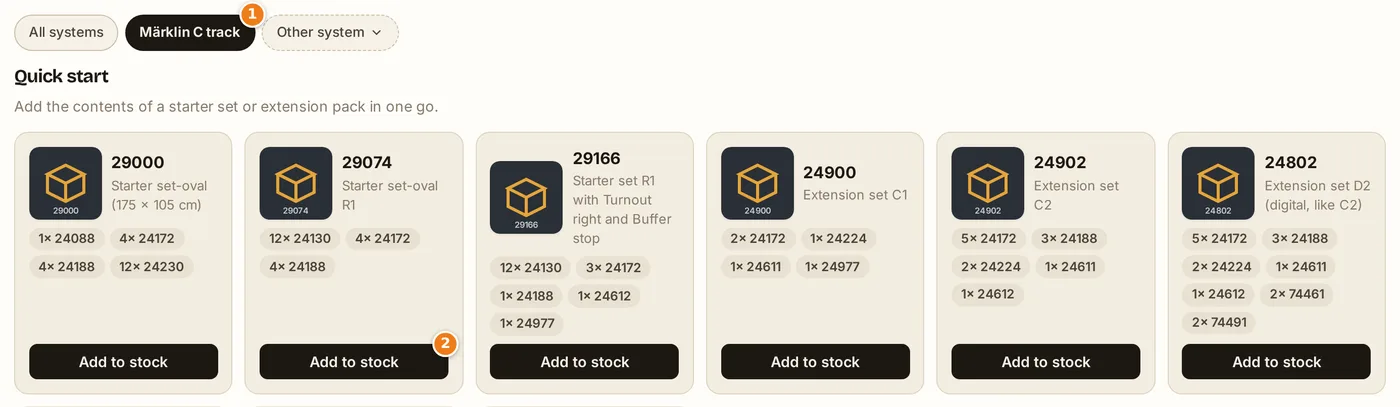
The chosen track system (1) and the button on starter set 29074 (2). Find your set by the number on the box. Each card shows what is inside, such as 12x 24130, 4x 24172 and 4x 24188.
Click Add to stock. The quantities are added to what you already had, and the counter at the top updates straight away.
Scroll to Catalogue and stock and tick in stock only. You now see just the pieces you own, with their quantities.
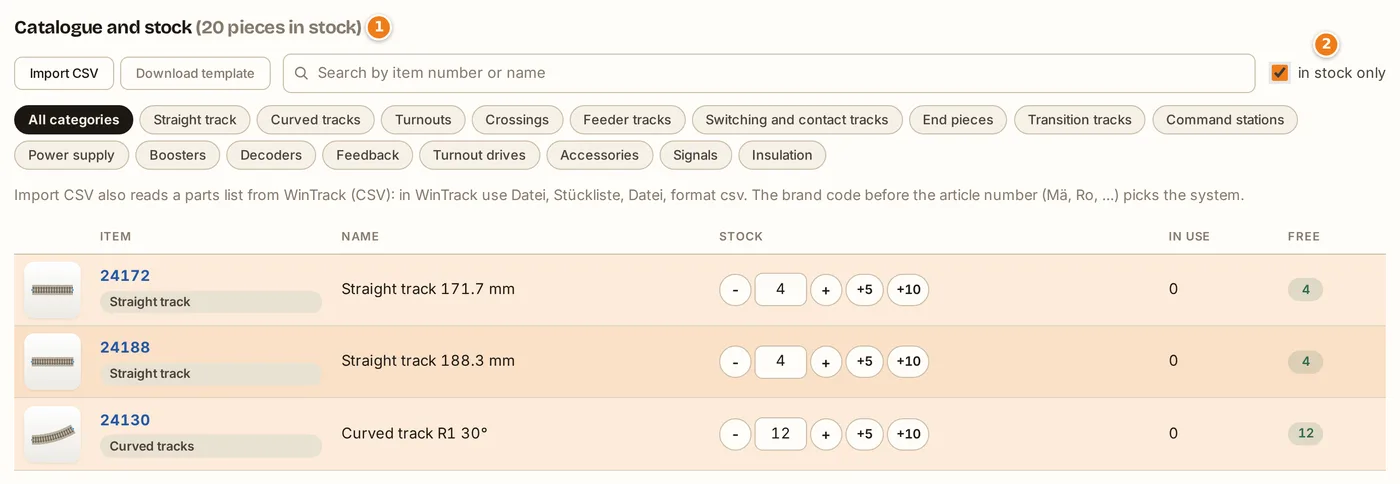
The total in the heading (1) and the in stock only tick box (2). Got an extension set as well, such as C1 (24900)? Click Add to stock on that card too. Loose pieces you then enter by item number.
Straight from your first plan
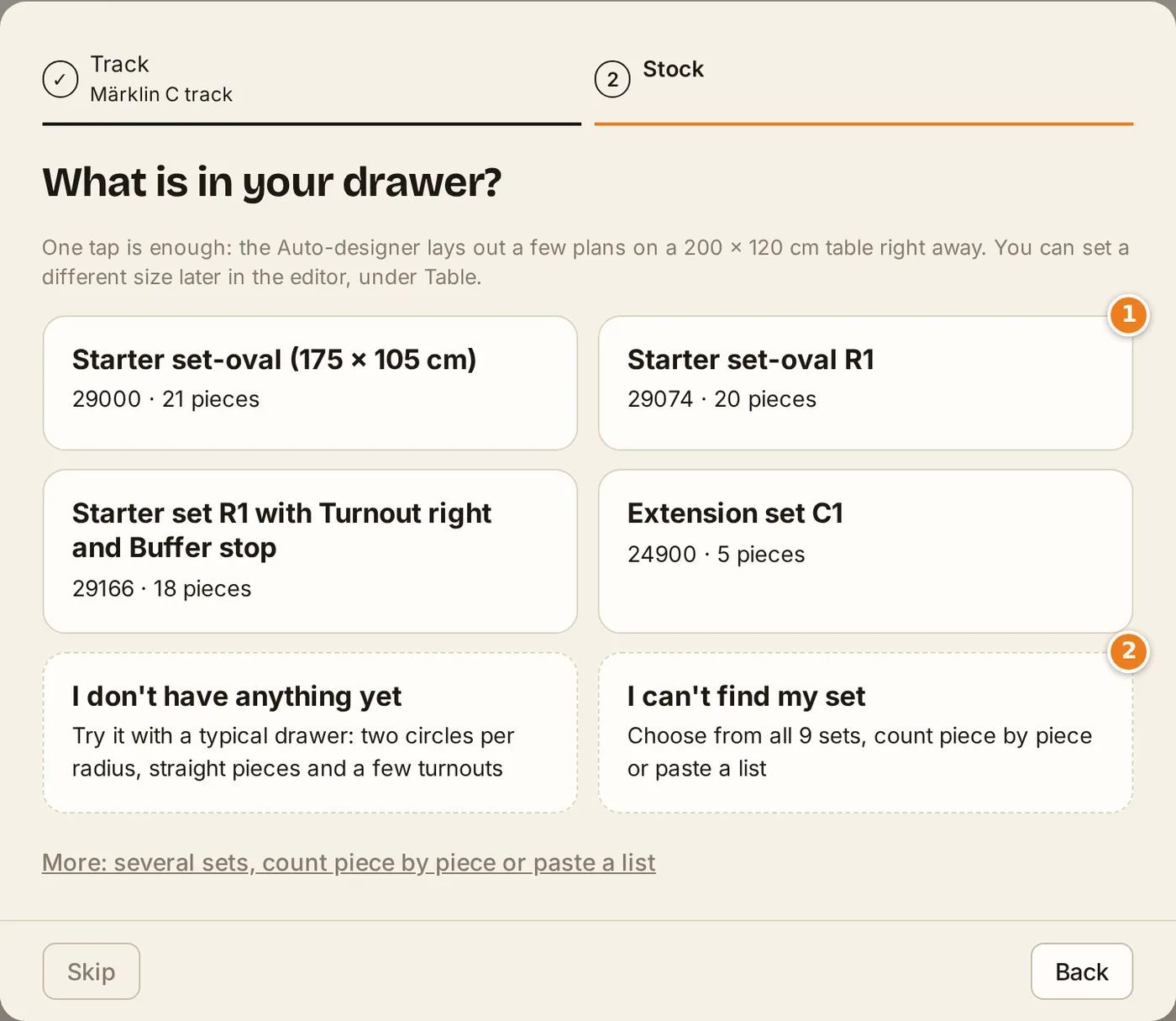
If you are just starting, the app's wizard asks "What is in your drawer?" for your first plan. Tap your starter set there and the Auto-designer lays a few plans right away. Not in the list? Choose I can't find my set: you then pick from all sets, count piece by piece or paste a list.
What you can build with a starter set and a few extra pieces is covered in getting started with Märklin C track.